 SVXConnect
Your SvxLink network, in your pocket
SVXConnect connects licensed amateur radio operators to SvxLink reflectors — talkgroups, a live map and real-time activity, with secure certificate-based access.
Download SVXConnect
Available now on Android, iPhone, iPad, macOS and Windows.
SVXConnect Mobile

Get it on Google Play
The same app, with a layout that adapts to your device — phones, tablets and POC network radios. Talkgroups, a live map and real-time activity, with secure certificate-based access.
* POC = push-to-talk-over-cellular — see supported POC phones ↓
SVXConnect Desktop
Mac App Store · Apple Silicon
The full native SVXConnect client for your Mac — talkgroups, a live map and real-time activity, with secure certificate-based access. Apple Silicon only — M1 and later.
Tip: add the free PTT and QRZ companions (right here) for a system-wide push-to-talk hotkey and live QRZ.com callsign info.
›How to install & set up
- Open the Mac App Store link and install SVXConnect.
- Launch it, enter your call sign & email, and connect to a reflector.
- On first connect it requests a client certificate; your reflector's sysop signs it.
- Optionally add PTT and QRZ below for a global hotkey and live lookups.
Microsoft Store · Windows 10 & 11
The full native SVXConnect client for Windows — talkgroups, a live map and real-time activity, with secure certificate-based access. Same design and features as the mobile and macOS editions.
Tip: installed from the Microsoft Store, it updates itself automatically — you're always on the latest build.
›How to install & set up
- Open the Microsoft Store link and install SVXConnect.
- Launch it, enter your call sign & email, and connect to a reflector.
- On first connect it requests a client certificate; your reflector's sysop signs it.

macOS · global PTT hotkey
A standalone macOS app that gives SVXConnect a system-wide push-to-talk hotkey — press a key combo anywhere to toggle (or hold) PTT, even when SVXConnect isn't the front app. Optional, but we really recommend it for desktop operating.
Tip: pair it with Hyperkey to turn the otherwise-wasted Caps Lock into a modifier key. We use Caps + Enter to toggle PTT.
›How to install & set up
- Open the .dmg and drag PTT into Applications. It's signed & notarized by Apple, so it opens normally.
- Launch it — the configuration window pops up. Record the hotkey you want for PTT.
- For hold-to-talk (key down = TX, key up = RX), grant Accessibility when asked. Toggle mode needs no extra permission.
- Optionally enable Start on login and hide the Dock icon to run it from the menu bar.
- Install Hyperkey if you want a Caps-Lock-based combo like Caps + Enter.

macOS · lookup & QSO logging
A standalone QRZ.com lookup service. With it running, SVXConnect resolves callsigns in real time to show who you're hearing — name, location and more. It also works on its own: hit a hotkey to look up a callsign from anywhere, or log the QSO to your QRZ.com logbook with another — the menu keeps your last 5 contacts in view. Optional.
Tip: pair it with Hyperkey to turn the otherwise-wasted Caps Lock into a modifier key. We use Caps + Q to trigger a lookup.
›How to install & set up
- Open the .dmg and drag QRZ into Applications. It's signed & notarized, so it opens normally.
- Launch it — it lives in the menu bar. Open QRZ ▸ Settings… and enter your QRZ.com username & password (a paid XML subscription is required for live lookups).
- Optionally set your QTH (lat/long) to get bearing & distance, and a global lookup hotkey.
- To log contacts, add a logbook in Settings (paste its QRZ logbook API key), set your call sign, and pick a Log hotkey. Press it to open a prefilled QSO form — the menu then lists your last 5 QSOs.
- SVXConnect picks it up automatically — callsign info now appears in real time while you listen.
PTT and QRZ are free, optional macOS companion apps — distributed outside the App Store, signed & notarized by Apple.
Everything you need on the air
A full SvxLink reflector client, designed for field operation.
Talkgroups
Browse, select and monitor talkgroups on any secure SvxLink reflector, with priority preemption for the channels that matter.
Push-to-talk audio
Real-time Opus voice over the SvxLink protocol — clear, low-latency and built for handheld operation.
Live map
See where other operators are transmitting from, plotted live on an interactive map.
Live activity
A real-time feed of who's talking across the reflector, so you never miss the QSO.
Certificate-based auth
Your private key never leaves the device. Connect securely with an X.509 client certificate issued to your call sign.
Built for operators
Made by hams, for licensed amateur radio operators. No ads, no tracking, no analytics SDKs.
Even better when your reflector opts in
SVXConnect works on any secure SvxLink reflector out of the box. When the reflector's sysop runs the optional enhanced reflector feed, every app receives a live stream of what's happening — who is talking right now, on which talkgroup, and where each node is — so the activity list and map update in real time instead of only reflecting your own session. Add the companion portal and you also get friendly talkgroup names and per-callsign info. It's the difference between a working client and a live window into the whole network.
Built for each platform
Same protocol, native everywhere — with extras that make the most of each device.
Android — Phones, Tablets & POC
★ Phones, tablets and POC mode — the same app, three adaptive layouts
- ✓One app that adapts to your device — a phone UI, an iPad-style multi-column tablet layout, and a compact POC mode for small-screen network radios like the Hytera PNC360.
- ✓Assign a vendor side key (like the Samsung XCover PTT key) as push-to-talk — keys up even when the app is backgrounded or the screen is off, via Samsung's unmanaged key mappings (no accessibility service, no Knox licence).
- ✓Large on-screen PTT button — hold-to-talk or toggle — plus wired/Bluetooth media-button keying; a pulsing red border wraps the whole app while you transmit.
- ✓Talkgroup priority monitoring with automatic preemption and sticky linger; lock to pin one TG, long-press to mute, and watch a live who's-talking feed from the reflector.
- ✓Opus audio at 16 kHz, auto-routing to Bluetooth, LE Audio, wired or USB headsets; a foreground service keeps the reflector and audio alive in the background.
- ✓Auto-reconnect via WorkManager with TCP/UDP heartbeats; secure X.509 onboarding over TLS 1.2 — your RSA key is generated on-device and never leaves it.
- ✓Picture-in-Picture listen-only window shows connection, active talkgroup and current talker while you use other apps.
- ✓OpenStreetMap node map (osmdroid, no API key) with status-coloured nodes; callsign and talkgroup names enriched from the portal — no QRZ subscription needed.
- ✓Material 3 dark interface in Jetpack Compose; automatic location via Google Play services with an IP-based fallback.
* POC = push-to-talk-over-cellular — see supported POC phones ↓
iPhone & iPad
★ Toggle PTT with your AirPods — or a Bluetooth remote
- ✓Key up hands-free from your AirPods stem / play-pause, or the AirPods Max digital crown.
- ✓Support for AB Shutter3-class Bluetooth remotes: big button → PTT, small button → next talkgroup.
- ✓VOX mode — transmit auto-engages when you speak (optionally Bluetooth-only).
- ✓Choose your audio route — speaker, headphones, AirPods or a Bluetooth headset mic (HFP).
- ✓Spoken talkgroup announcements through the active route, with AirPods Max press-to-cycle.
- ✓External-keyboard PTT shortcut; adaptive layout — stacked on iPhone, side-by-side on iPad.
macOS
★ Look up nodes & repeaters with your QRZ.com credentials
- ✓Enrich the map with QRZ.com callsign data — name, location and details for nodes and repeaters (paid QRZ XML subscription; cached 30 days).
- ✓System-wide PTT hotkey that works even when the app isn't focused.
- ✓Menu bar extra shows the active callsign during traffic, with quick PTT and volume.
- ✓Always-on-top window option to keep activity in view while you work.
- ✓Per-device audio input/output selection via CoreAudio.
- ✓Native multi-window AppKit experience.
Windows
★ System-wide PTT hotkey — transmit from any app
- ✓Hold-to-talk or toggle, via a global keyboard hook that fires even when SVXConnect isn't the front app.
- ✓Enrich the map with QRZ.com callsign data — name, location and details for nodes and repeaters (paid QRZ XML subscription; cached 30 days).
- ✓Lives in the Windows system tray — switch talkgroups, toggle lock and connect, with the current talker in the tooltip.
- ✓A click-through “on air” badge pops up bottom-right during traffic, showing who's transmitting without stealing focus.
- ✓Per-device audio input/output selection via WASAPI, with VU meters, volume/mute, auto-duck and a roger beep.
- ✓Native WPF app — single-instance, start-on-login and your settings restored across launches.
Linux desktop apps
Two native windows for the Linux desktop — Qt on Omarchy/Arch, GTK on the Pi. Both are the graphical sibling of the CLI, and share its core, config and certificate.
SVXConnect
FreeOmarchyA Qt desktop client that follows your Omarchy theme
The full window, restyled by your desktop: it reads the Omarchy theme's palette, font and corner rounding, and follows omarchy theme set without a restart. Push-to-talk is a normal Hyprland bind, so a key anywhere on the desktop transmits — and while the window sits in the tray, a notification names whoever keys up.
$ sudo pacman -Sy svxconnect-omarchyAdd repo.rf.guru first. Trust the signing key and add the [guru] repository once — the steps are with the CLI below. The package pulls in the svxconnect CLI, which you use once to create the configuration and enrol.
Global push-to-talk: Preferences › Push-to-talk writes the bind into ~/.config/hypr/bindings.lua for you — SUPER + ` by default — and puts the file back if Hyprland rejects it.
Free & open source · MIT license
SVXConnect
FreeRaspberry Pi OSA GTK desktop client + panel widget for the Pi
A small SVXConnect window plus a status/PTT widget that lives in the Pi panel — the way the macOS app lives in the menu bar. Same reflector engine, config and certificate as the CLI: press-and-hold PTT with the mouse, click a talkgroup to switch, and see connection, talkgroup and transmit at a glance in the panel.
$ sudo apt install build-essential pkg-config libgtk-3-dev libssl-dev libopus-dev
$ git clone https://github.com/Guru-RF/SVXConnect-PIOS
$ cd SVXConnect-PIOS && git submodule update --init
$ make && sudo make install
Install the CLI first. The desktop app links the CLI's core and shares its config and certificate — enrol once with svxconnect --enroll, then build the GUI.
Optional panel widget: a dot + TG n in the Pi taskbar — green connected, red transmitting, amber (re)connecting. See the repo for make panel and enabling it in wf-panel-pi.
Free & open source · MIT license
SVXConnect on the VFO-Knob
No computer, no phone, no radio — RF.Guru's hardware knob is a reflector client of its own, over WiFi.
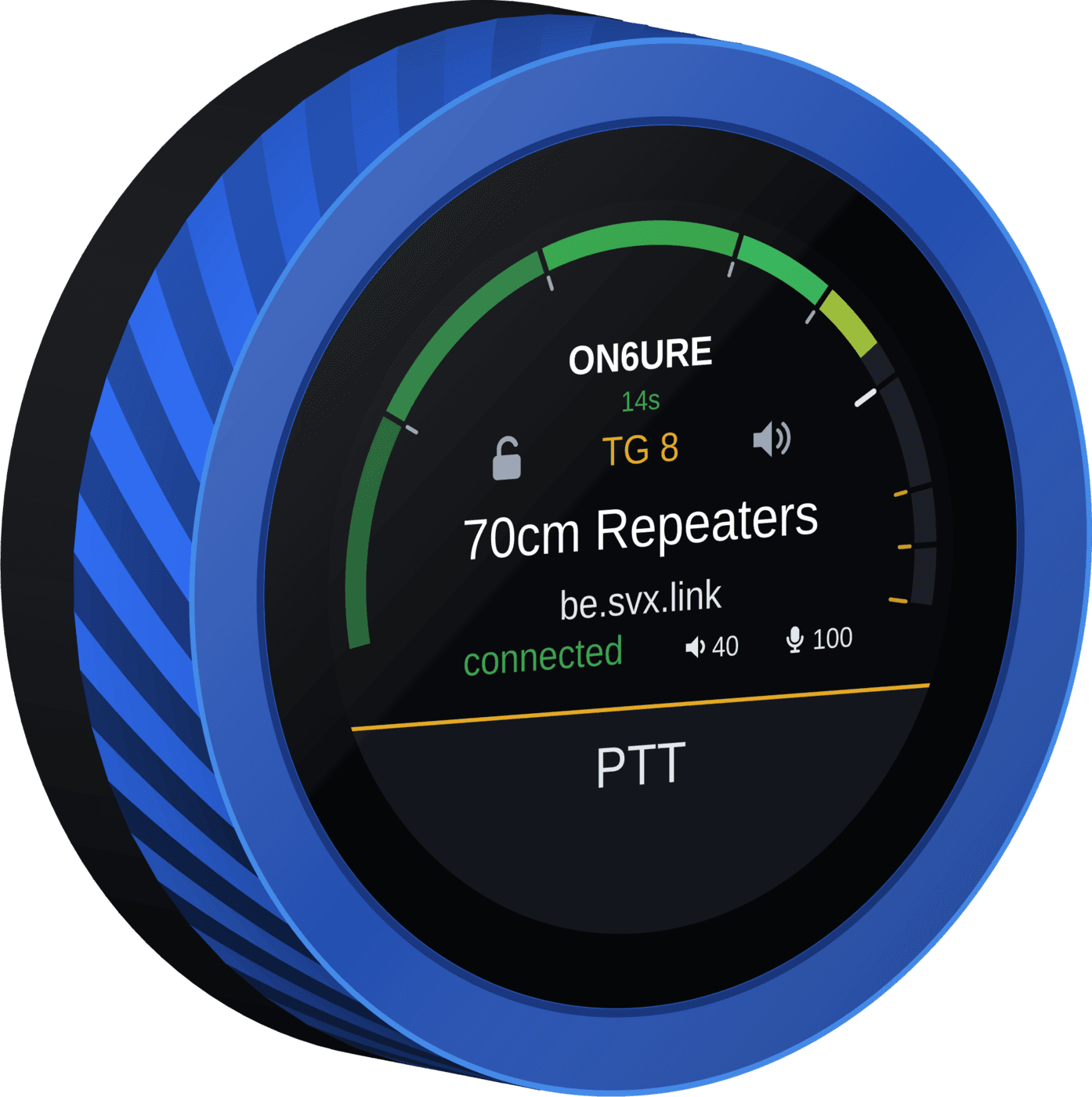
svxconnect firmware
Freev1.5.0Open source · preinstalled on every knob
A port of SVXConnect to the knob itself, in its colours: the machined ring picks the talkgroup, the meter shows who is talking, and the built-in microphone and the 3.5 mm jack are your station. It ships preinstalled, and updates itself from RF.Guru — there is nothing to flash.
- ✓The ring picks the talkgroup — one a step, its name from the reflector's portal, the reflector under it.
- ✓Who's talking, above the meter — the callsign on the air and, where the reflector publishes it, where they are.
- ✓Lock and mute either side of the talkgroup — hold it against switching, or keep following without the sound.
- ✓PTT, confirmed — tap to key, tap to unkey, and the reflector's own announcement says you have the floor.
- ✓Talkgroups the SVXConnect way — switchable ones on the ring, monitored ones followed when there's traffic, and priorities.
- ✓Secure by the reflector's rules — protocol 3.0 with TLS and a client certificate, requested with one tap. Opus both ways.
Getting on. On the knob's configuration page set your WiFi and the reflector by name — be.svx.link is found by itself — then your callsign and email, and press Request certificate. The knob keeps asking until your sysop has signed it, then logs in by itself.
Blue — wireless on WiFi, with a battery — and the svxconnect firmware preinstalled. The firmware is on GitHub.
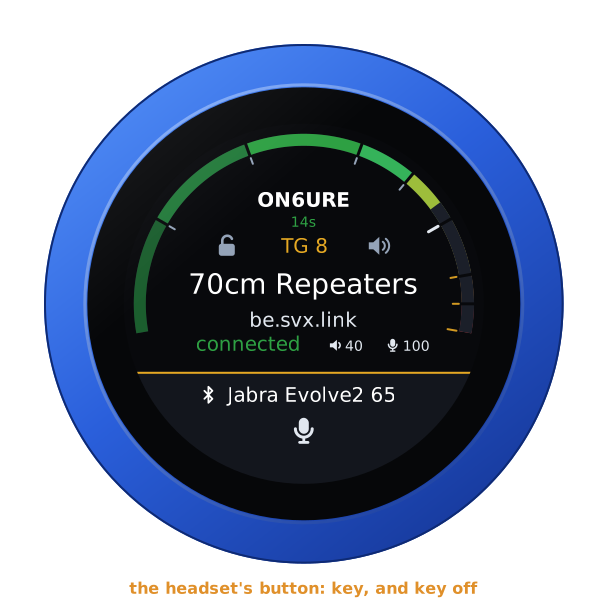
Or a Bluetooth headset
Pair a headset and it becomes the knob's ear and microphone: you hear the talkgroup in it, you talk through its boom mic, and the knob's own microphone goes quiet. The slab then names the headset instead of PTT, with its microphone struck through in red while the headset is muted.
- ✓Its call button is the PTT — a press keys, the next unkeys. It won't key a dead carrier while the headset is muted.
- ✓Or the boom arm — on a headset that mutes when the boom goes up, lower it to talk and raise it to stop.
- ✓Safe when it walks away — out of reach or out of battery mid-transmission and the knob unkeys by itself. A tap on the knob always stops it too.
- ✓Paired once, there every time — pair it on the configuration page and the knob calls it whenever it switches on.
Hands-free profile with wideband speech, through the board's second chip. Made with the Jabra Evolve2 65, Mono or Stereo; other hands-free headsets should work too.
Supported POC phones
Dedicated push-to-talk-over-cellular radios — their hardware buttons wire straight into SVXConnect.
Runs SVXConnect from Google Play
UNIWA F400
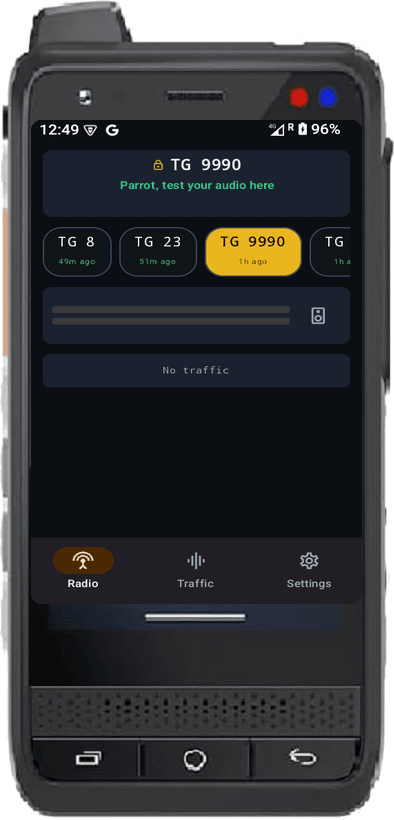
- ✓Install the regular SVXConnect app straight from Google Play — Android 10 and up, no sideloading.
- ✓Dedicated hardware PTT button.
- ✓PTT works in the background and in lock mode.
- ✓Its PTT key can't reach background apps on its own — the free PoC PTT companion captures it and relays it to SVXConnect.
Companion — sideload only.
Runs SVXConnect POC 2.3.3
Hytera P60
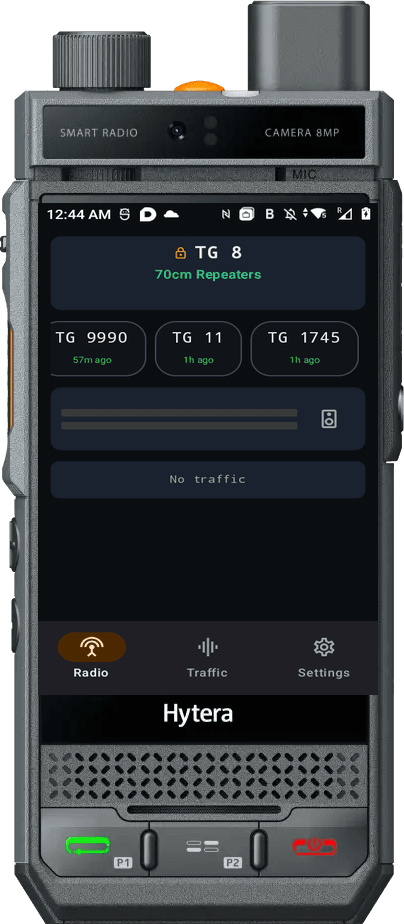
- ✓Every hardware button is configurable.
- ✓The rotary dial on top switches talkgroups.
- ✓Man-down locks a preconfigured talkgroup.
- ✓PTT works in the background and in lock mode.
- ✓Runs the SVXConnect POC edition — its profile is shared from your phone.
Hytera PDC680 — DMR + POC
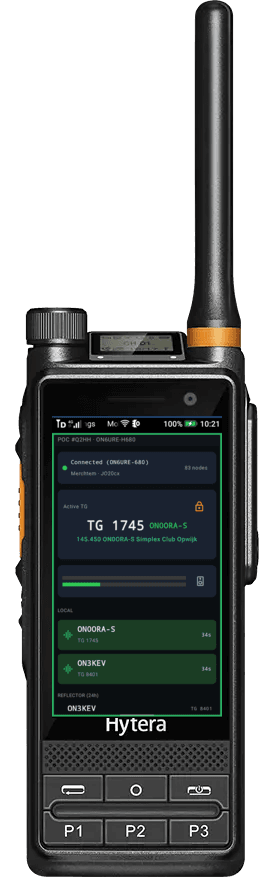
- ✓A DMR radio and an Android PoC handset in one. SVXConnect signs on to the radio as its PoC client, so the radio hands its own side PTT key to SVXConnect when you ask it to.
- ✓P1 flips the PTT between the DMR radio and SVXConnect, and says which one has it — “SVX connect” or “DMR radio”. It flips from the background, so the DMR screen can stay in front while you work the reflector.
- ✓Side Key 2 and Side Key 3 step the talkgroup up and down.
- ✓P1, P2 and P3 each take one job — the DMR/SVXConnect flip, lock or unlock the talkgroup, bring SVXConnect to the front — and you pick which key does which in Settings. Out of the box: P1 flips, P2 brings the app up, P3 locks.
- ✓The man-down key on top jumps to your panic talkgroup and, pressed again, back to where you were — the lock stays with its own key. Or set it to lock, or to nothing.
- ✓The radio's own home-screen PoC card shows the talkgroup you are on. While someone talks it reads
TG 1745over their callsign, andTX ON6URE-H680while you transmit. - ✓The keys do the work, so Settings › Display can hide SVXConnect's own Connect/Disconnect and talkgroup buttons — hidden by default on this radio.
- ✓Runs the SVXConnect POC edition — its profile is shared from your phone.
Set this on the radio first. Radio settings › Basic settings › Key priority › Third party first, and leave P1, P2 and P3 unassigned under the radio's Programmable keys — otherwise the radio keeps the keys for itself.
Hytera P50
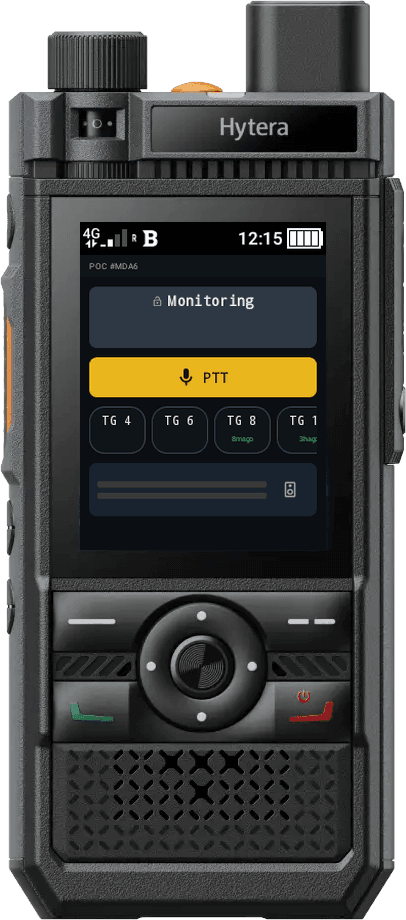
- ✓Runs the SVXConnect POC edition — a compact layout made for its small screen.
- ✓Key up with the hardware PTT button.
- ✓Its profile is shared from your phone — nothing to type on the handset.
Hytera PNC380
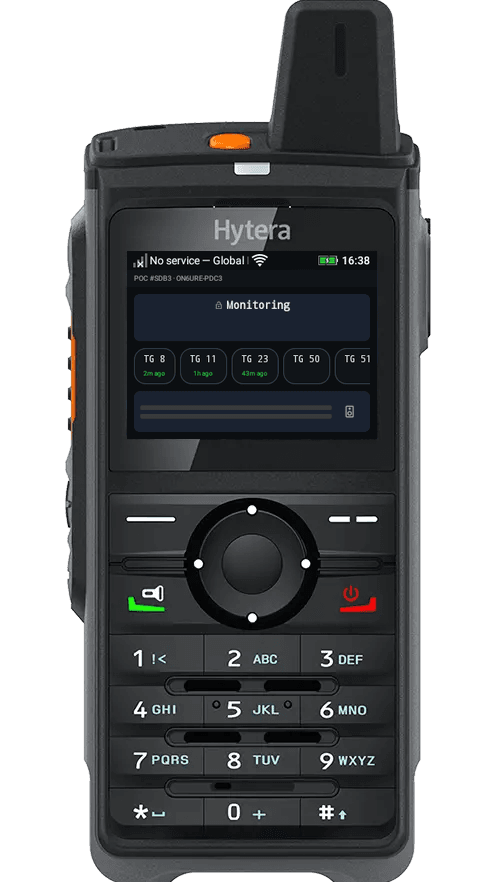
- ✓Runs the SVXConnect POC edition — laid out for its landscape screen.
- ✓Key up with the hardware PTT button.
- ✓Its profile is shared from your phone — nothing to type on the handset.
Inrico T320
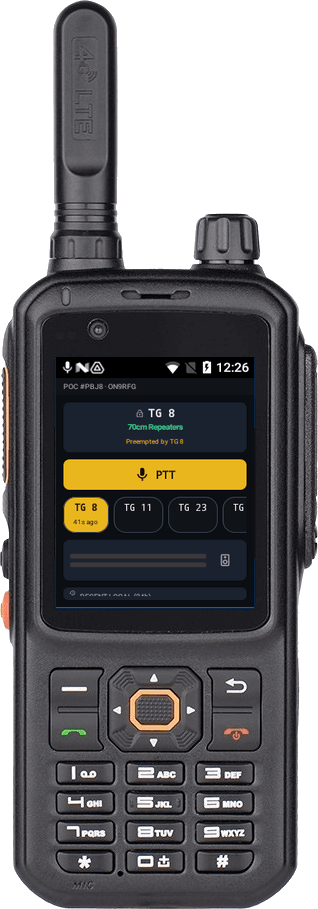
- ✓Runs Android 7, so it takes the sideloaded SVXConnect POC edition rather than the Play Store app.
- ✓A compact layout for its 2.4" screen — talkgroup, who's on, and a full-width PTT.
- ✓Key up with the hardware PTT button on the side.
- ✓Its profile is shared from your phone — nothing to type on the handset.

SVXConnect POC
For the Hytera P50, P60, PNC380 and PDC680 and the Inrico T320 · Android 7 and up
A sideload edition of SVXConnect for small-screen POC handsets, and it reaches back to Android 7 — the older Android these radios ship with. It holds one profile, which you create on another Android phone running SVXConnect and share to the handset.
- 1.Install SVXConnect from Google Play on your Android phone and set up a profile.
- 2.Make sure the profile connects.
- 3.Sideload SVXConnect POC on the handset, then tap Share on your phone — the profile lands on the handset.
New in 2.3.3. Bluetooth speakermics (Abbree, KST) transmit again on Android 12 and up: the headset link is kept alive and the microphone is pinned to it for every transmission, and the app asks for the Nearby devices permission it needs to notice the headset. On the PDC680 the P keys are yours to assign and the man-down key no longer touches the lock. Since 2.3.2 the first transmission of a session no longer comes out chopped, and the app looks at rfguru.app once a day, then shows a Download banner when a newer POC release is out.
SVXConnect POC 2.3.3 (.apk)Sideload only — not on the Play Store.
Supported rugged phones
Rugged Android phones running the full SVXConnect app from Google Play — most with a programmable key you press like a radio PTT.
Samsung XCover 7 Pro
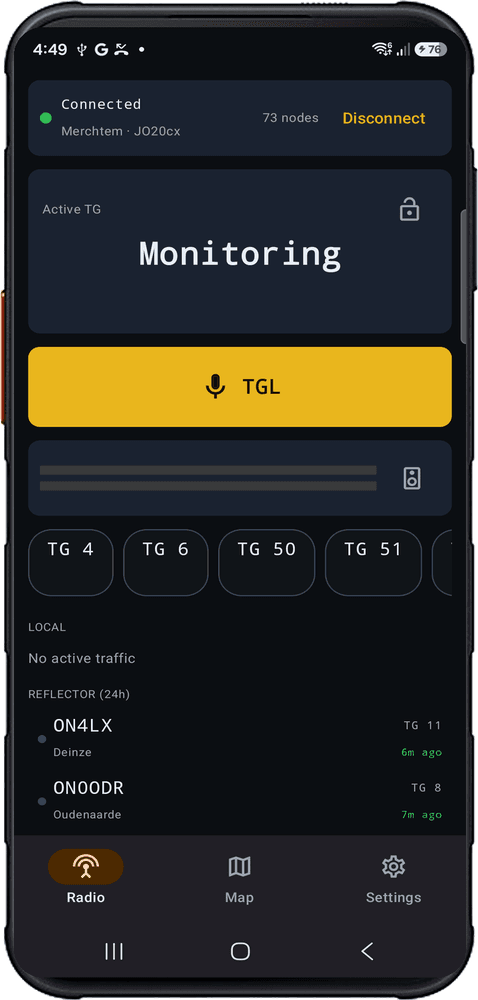
- ✓The programmable XCover key doubles as your push-to-talk key — press it like a radio to key up.
- ✓Runs the full SVXConnect Android app — talkgroups, a live map and real-time activity.
Blackview Xplore 6
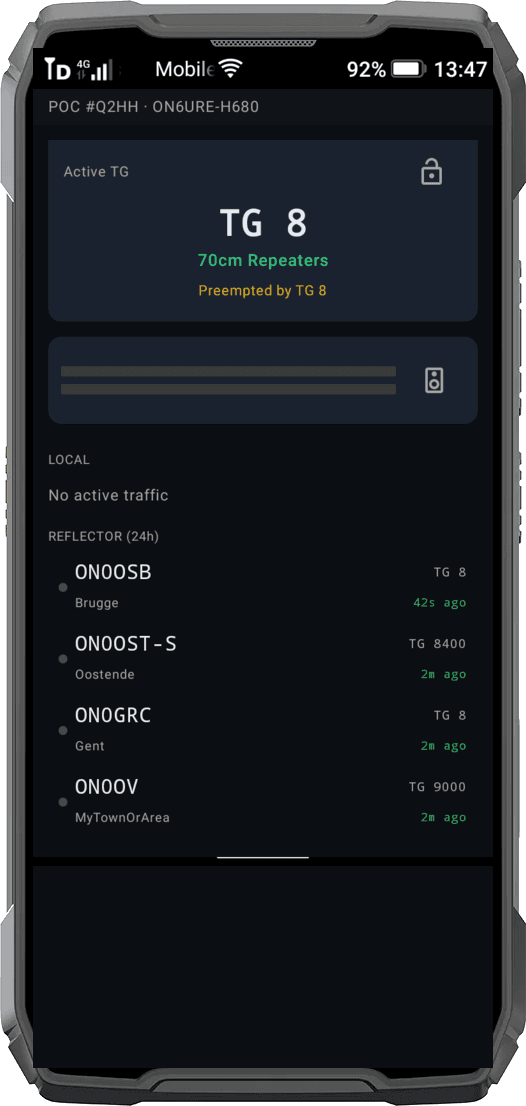
- ✓A rugged, waterproof Android phone running SVXConnect.
- ✓It is an ordinary Android phone, so it runs the regular SVXConnect from Google Play — talkgroups, a live map and real-time activity.
- ✓Nothing to sideload: the SVXConnect POC edition is for the small-screen handsets above, not for this one.
Blackview BL7000
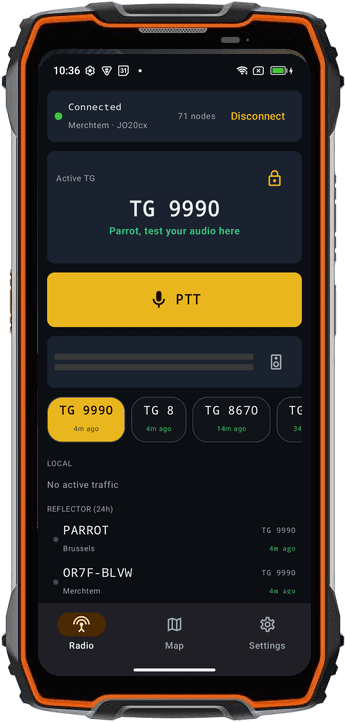
- ✓A programmable side key acts as your push-to-talk key — press it like a radio to key up.
- ✓Runs the full SVXConnect Android app.
- ✓To key up while SVXConnect is in the background, add the free PoC PTT companion — it captures the side key and relays it, the same helper the UNIWA F400 uses.
Sideload only — not on the Play Store.
Supported Bluetooth speaker mics
Pair a Bluetooth speaker mic and key up with a proper PTT button — hands on the mic, not the phone.
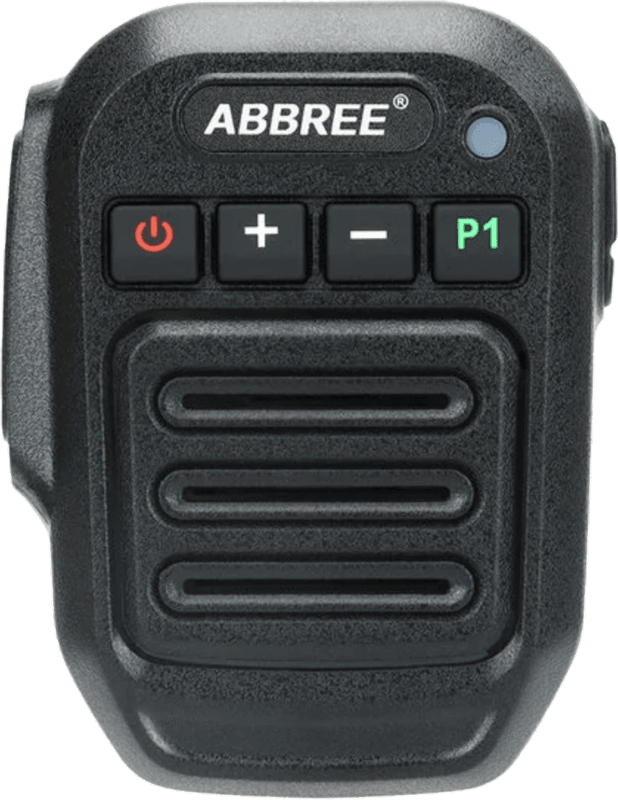
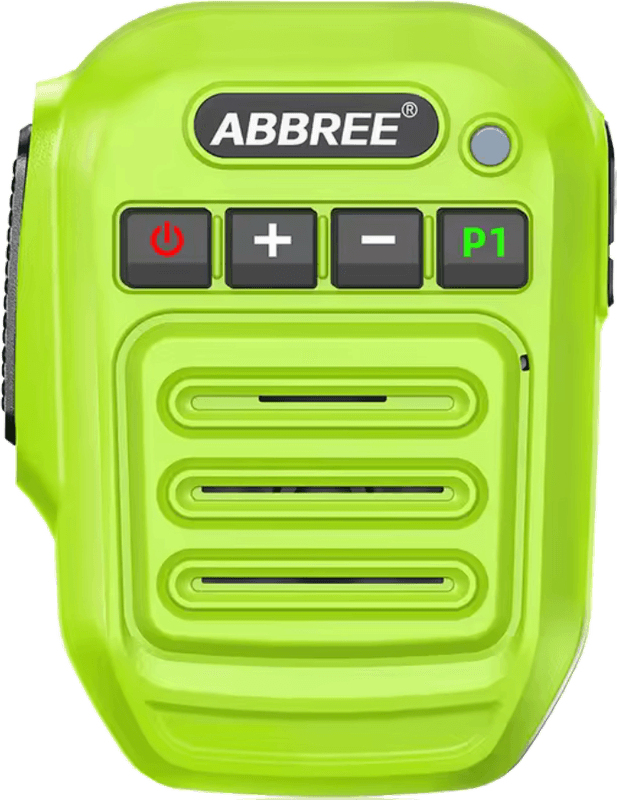
Abbree
AndroidiOSBluetooth speaker mic
A rugged wireless speaker mic with a big push-to-talk button, volume keys and a programmable key. Pair it over Bluetooth to key up SVXConnect and run your audio through it. Supported on both Android and iOS.
See it in action
SVXConnect running live on iPhone, iPad and Android.
And on the macOS desktop.
And on the Raspberry Pi OS desktop.
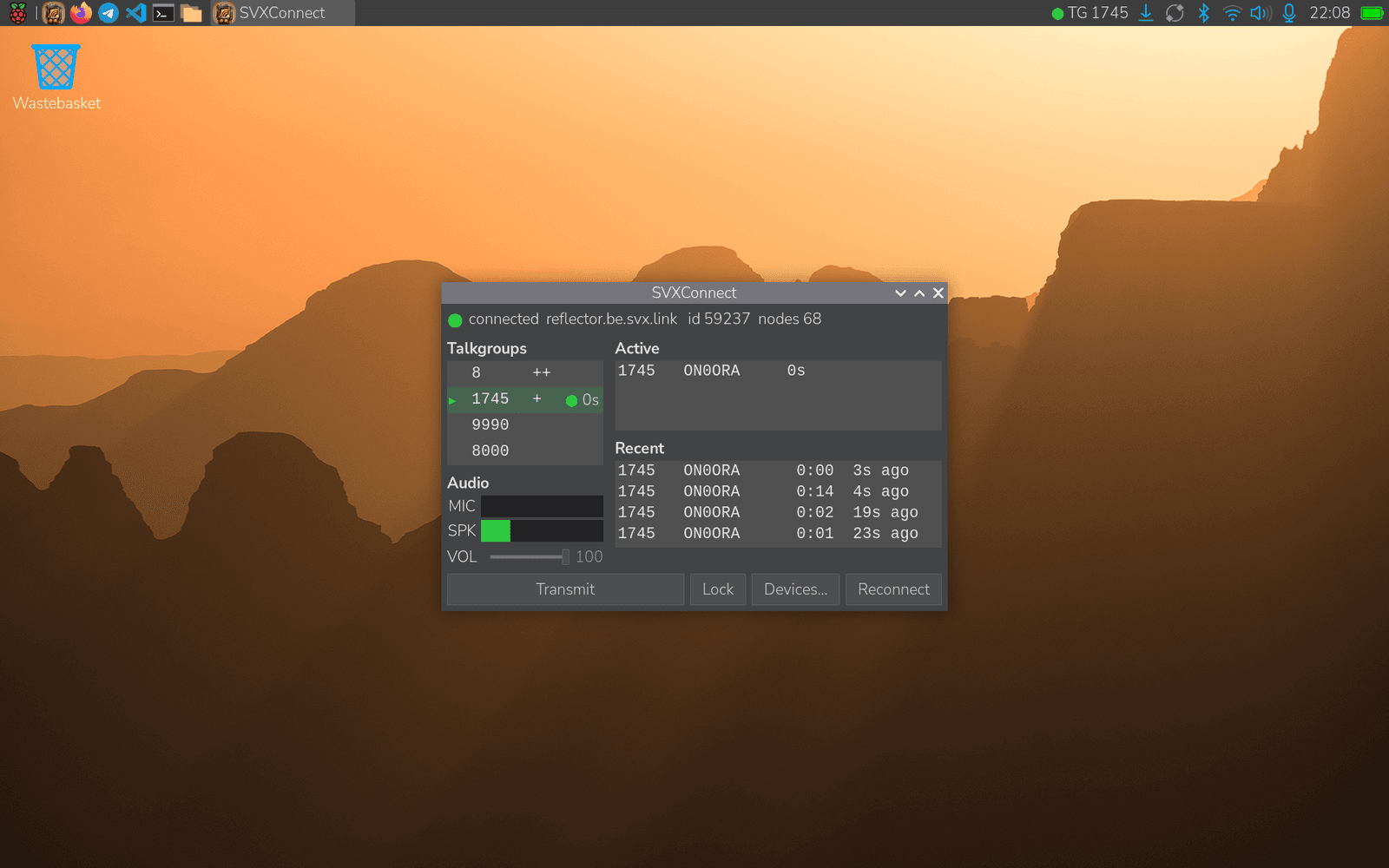
And on Omarchy.
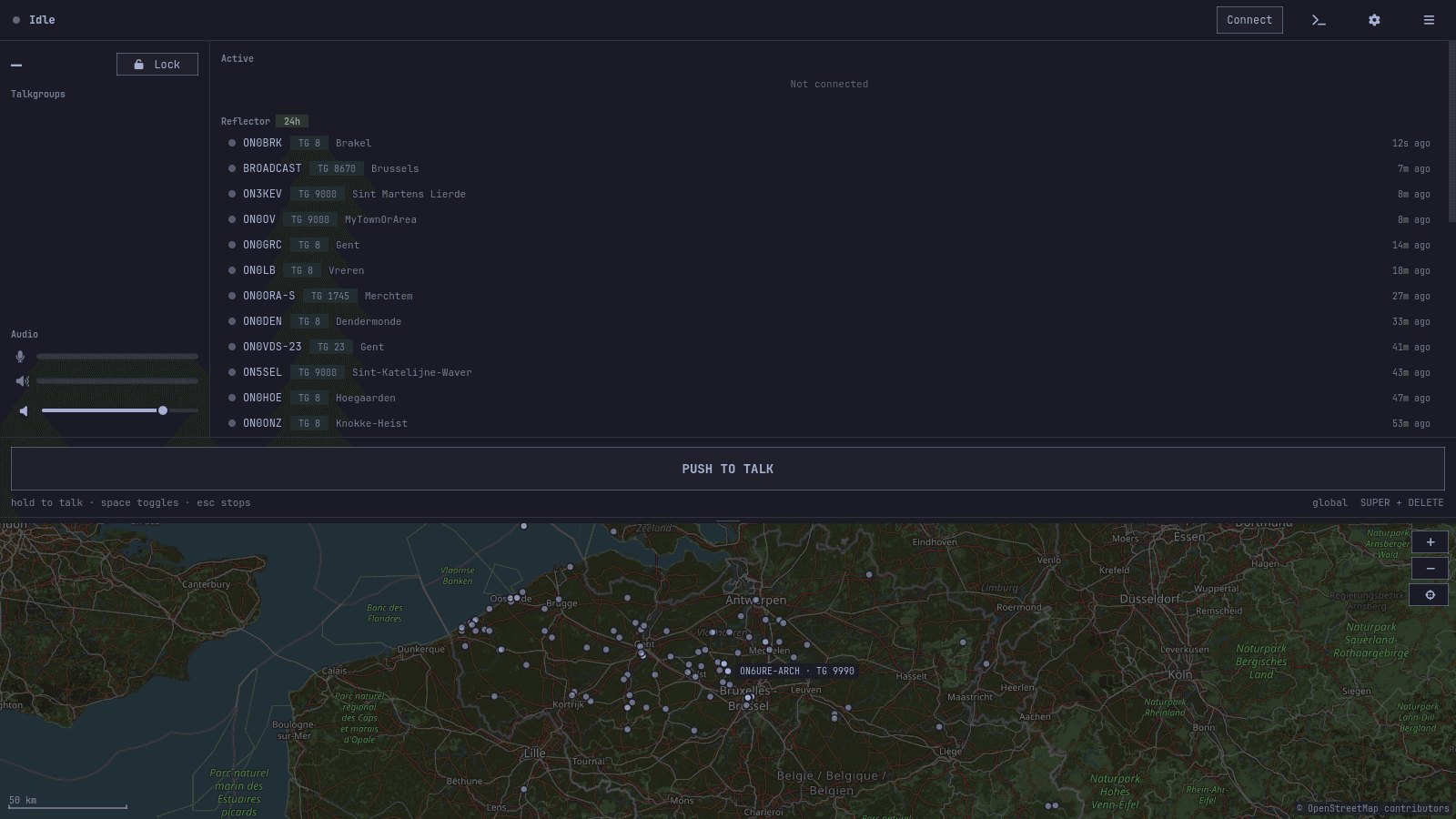
And on Windows.
Command-line client
For operators who live in the terminal — the same reflector client, in C, over SSH or a terminal window.
svxconnect
FreeCLIA terminal client for SvxLink reflectors, written in C
Connect to a SvxLink v3 reflector over mutual TLS with AES-GCM Opus audio, monitor several talkgroups at once, switch between them by priority or with the arrow keys, lock to one, and transmit with SPACE — all from a fast ncurses interface, over SSH or a terminal window.
$ brew tap guru-rf/svxconnect https://github.com/Guru-RF/SVXConnect-CLI
$ brew install svxconnect# trust the RF.Guru signing key, once
$ curl -fsSLO https://repo.rf.guru/repo-key.asc
$ sudo pacman-key --add repo-key.asc
$ sudo pacman-key --lsign-key 878DC4CB2070252EFC08E2AEAFD96E81AB70B5CA
# add the [guru] repository to /etc/pacman.conf
$ sudo tee -a /etc/pacman.conf <<'EOF'
[guru]
SigLevel = Required
Server = https://repo.rf.guru/arch/$repo/os/$arch
EOF
# the terminal client — and the desktop app, if you want it
$ sudo pacman -Sy svxconnect
$ sudo pacman -S svxconnect-omarchyOn Arch & Omarchy: the package brings the man page, the svxconnect@.service unit and the system user it runs as, and PipeWire is already there — nothing else to set up. Updates then arrive with your normal pacman -Syu. Prefer to build it yourself? The PKGBUILDs are in packaging/arch/. The desktop app has its own card above.
$ sudo apt install build-essential pkg-config libncurses-dev libssl-dev libopus-dev
$ git clone https://github.com/Guru-RF/SVXConnect-CLI
$ cd SVXConnect-CLI && make && sudo make install
Any Linux distro: no audio dev package to install — the backend loads PipeWire/PulseAudio or ALSA at runtime. Tested on Arch, Omarchy, Raspberry Pi OS, Debian and Ubuntu.
Free & open source · MIT license
Support & FAQ
Common questions about getting on the air. Still stuck? We're here to help.
Which reflector domain or hostname do I use?+
Ask your local sysop for the reflector's domain or hostname. In Belgium it's be.svx.link. We don't keep a list of reflectors for other countries — your sysop will have the details.
Can I use SVXConnect on more than one device?+
Yes — but on a reflector each callsign must be unique, so you can't connect two devices under the exact same callsign at once. Give each device a short suffix after a hyphen — for example OR7F-IPAD (iPad), OR7F-XVCR (Android XCover), OR7F-IPHO (iPhone) or OR7F-OSX (Mac desktop). The part after the - can be up to 4 characters.
How does certificate signing work?+
On first connect the app requests a client certificate that your reflector's sysop signs. In Belgium this is fully automated — you'll get an email as soon as it's signed (your sysop gets a copy too).
I haven't received my certificate — what should I check?+
Check your inbox and your spam folder for the signing email, and make sure you typed your email address correctly in the app — that's where the confirmation is sent. On reflectors outside Belgium signing may be done manually, so please be patient or contact your local sysop.
Still need a hand?
Questions about setup, certificates or connecting to your reflector? Reach the RF.Guru team and we'll help you get on the air.